LLN assessments
How the LLND assessment works, why you're only asked what's needed, and how re-attempts work.
Written By Manning Blackall
Last updated 13 days ago
The Language, Literacy, Numeracy and Digital skills (LLND) assessment helps your training organisation understand any support you might need before, during and after a course. You complete it in the Student Portal, and your results are kept so you're only asked what's actually needed.
Where to find it
Sign in to the Student Portal.
Open Assessments.
Select Start LLND Assessment to begin.
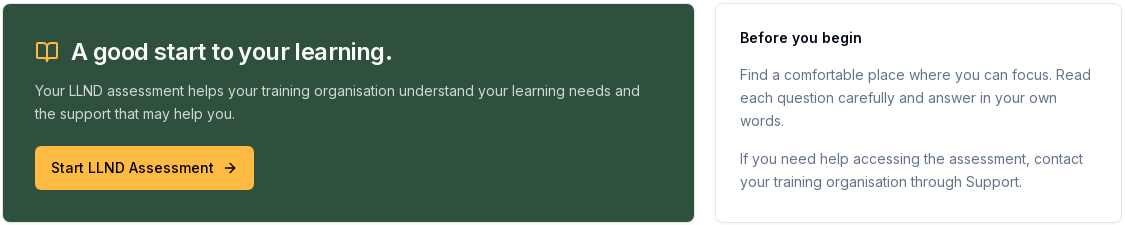
Tip: find a quiet spot, read each question carefully and answer in your own words. Your answers help your training organisation give you the right support.
Completing the assessment
Work through each question at your own pace. If you leave part way through, your progress is saved and the button changes to Resume LLND Assessment so you can pick up where you left off. When you finish, you'll see an Assessment Complete summary letting you know your answers have been recorded.
The test goes up to the level your course needs, including ACSF Levels 4 and 5, and starts two levels below it. That keeps it shorter than working up from the bottom.
You're only asked what's needed
Each skill you're assessed on is kept on your record for 12 months. When you enrol in another course:
You're only asked about skills that are missing, have expired, or are below what the new course needs.
If you already meet every level the course needs, you skip the test completely.
If your existing results are used, you'll see a note saying they came from your previous LLND assessment, and you can carry on.
For long courses, and short courses that need approval, you do the LLND as part of your application, before the training organisation makes a decision. See Long Course Applications.
Re-attempts
Sometimes your training organisation may ask you to sit the assessment again. If so, you'll see an LLND Re-attempt Requested message on the Assessments page, and the button changes to Start LLND Re-attempt.

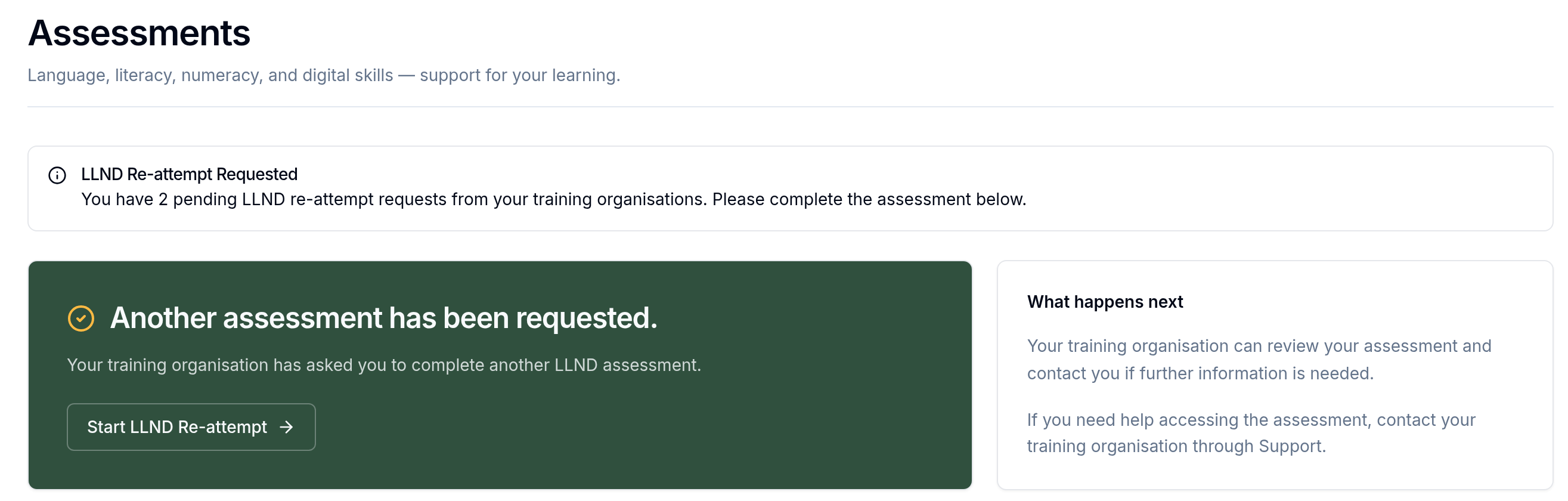
A re-attempt tests all six skills, not just the ones that changed. You can also start a new assessment yourself at any time using the Re-attempt option beside a previous result.
Your previous assessments
Every completed assessment is listed under Previous assessments. Assessments taken before the LLND update are shown for reference. To refresh them, start a new LLND assessment.
For training organisations
This section is for admins and trainers.
Set the LLND levels a course needs on the course itself. See Programs and courses (admins).
The student's page has a Current Levels table showing each skill's level, whether it's current, expiring soon or expired, and when it was assessed.
You can request a re-attempt and link it to an enrolment.
When you review an application, the review page shows the applicant's LLND results against the course minimum, so you can decide with the full picture.
Trainers don't see LLND warnings on non-accredited classes.
Gotcha: results expire after 12 months, so a student who studied with you over a year ago may be asked some skills again. That's expected, not a fault.
Students who haven't finished their LLND get a reminder before their class starts. See Automated emails (admins).
Related articles
Was this helpful?
Still need help? Ask the team